
MDS Self-Serve#
MDS Self-Serve
The Self-Serve is is hosted on your website for the merchants to sign up themselves. It is aimed at the merchants with uncomplicated requirements – It maybe that due to the size of their business, they only require 1 payment terminal. In this scenario, the merchant can navigate their way through the Self-Serve journey, select the payment device that suits their business needs, agree pricing and get their device configured in under 5 minutes.
The Self-Serve is designed to be hosted on your website. It is cross-platform and so it can be accessed from a computer or a mobile or tablet.

Screen 1 – Lets get started
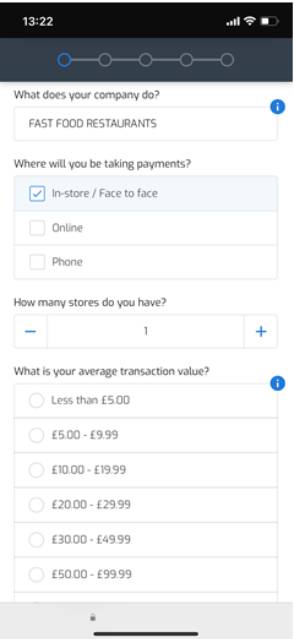
The first screen is all about capturing the business information required in order to establish a risk level for that particular merchant, such as their MCC, and gathering enough information on the business to be able to present them with a quote. The Self-Serve journey offers a ‘breadcrumb’ trail which allows users to keep track and maintain awareness of their locations the application process.

The ‘What does your company do?’ question refers to the merchants MCC code. Due to the extensive list of MCC’s, we have configured a key word search. Depending on the characters / business descriptor entered, we provide the accurate MCC from our approved list.
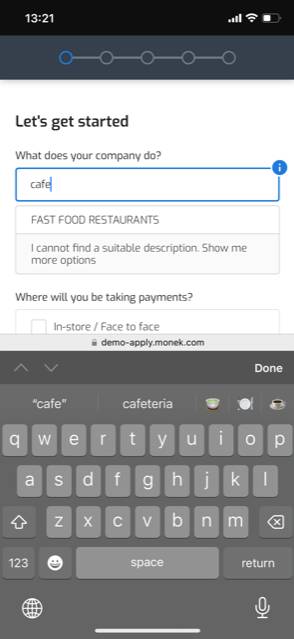
If the merchant going through the journey has more than 1 store, we allow them to add their multiple stores to their application. We capture the store details such as name and address towards the end of the application.
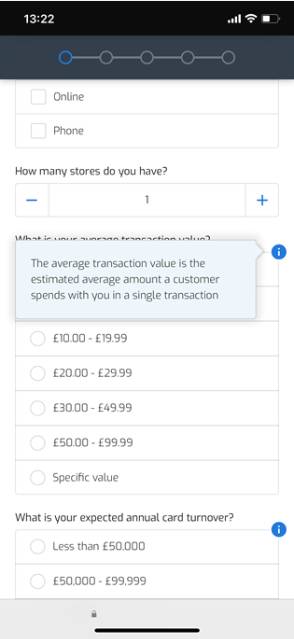
If the merchant is unsure of what the question is asking, throughout the Self-Serve journey we display information icons. Clicking these give the merchant a brief description of what we require for this field.
Screen 2 – Terminals
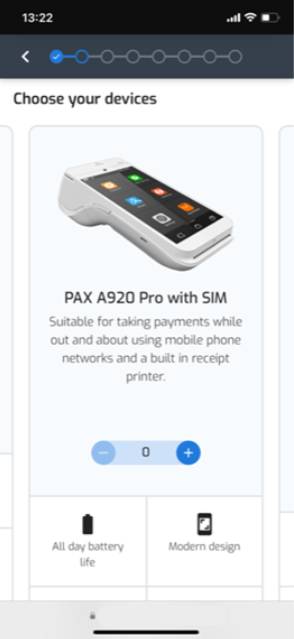
On this screen, the Self-Serve will display the available terminals to the merchant. These will be the same devices as in the Back Office platform. The Self-Serve displays the terminals and their features to the user in an easy to read user interface.
Screen 3 – Pricing
Based on the data captured in the previous screens and the device(s) selected, the Self-Serve will take all this data into account and display the best available pricing offers to the merchant.

If the merchants who are going through Self-Serve journey are new to payment processing, displaying all the different fee types may be confusing – The fees are displayed in an easy-to-read, blended format, allowing for transparency with the merchant.


Screen 4 – Tell us about yourself
On this screen, the Self-Serve captures the business legal type, business name and address. In the same way as the Back Office, the Self-Serve also utilises API lookup services to retrieve company information – reducing manual data entry and inaccuracies.

Screen 5 – Tell us about your business
On this screen, the Self-Serve captures the business legal type, business name and address. The MDS Self-Serve platform has built-in API lookup services to retrieve company information for all UK Limited Companies, LLC’s, LLP’s and Charities. At the point of selecting the correct company from the presented list, we also retrieve the information of the Director’s and Shareholders.
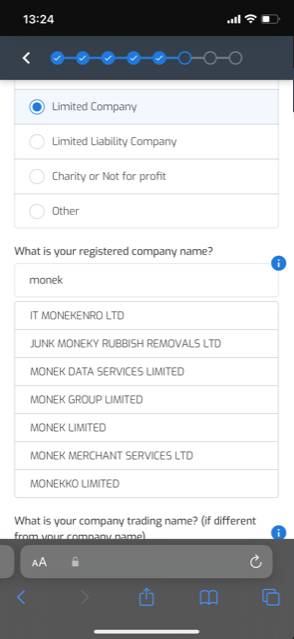
To search for the company, begin typing in the company name and you will be presented with the options that closely match – The search is driven by key word entry…the more characters entered, the more specific the search results that are returned are.

For Self Employed / Sole Traders and Partnerships, the platform does not have this functionality – Therefore, the details that would automatically get populated for Limited Companies, LLC’s, LLP’s and Charities via the lookup, become manual entry by the user.

Screen 6 – Review
The Review screen is where the Self-Serve will capture the Banking details, additional addresses and any Director / Shareholder information.


Screen 7 – Your Contracts
The Self-Serve utilises the ‘sign on glass’ feature for issuing contracts. If the surname of the merchant entered in the ‘Your Details’ matches the surname of a returned Director or Shareholder in the ‘Review’ screen, the merchant will be shown the below on screen message and redirected to sign the contracts. If the surnames do not match, then much like the Back Office, the merchant will need to choose who to send the contracts for signing to.


The contracts signing can be branded to your company style. Branding the contract signing experience will give comfort to the merchant that even though they have been redirected to another browser tab, they are still within the Self-Serve environment.
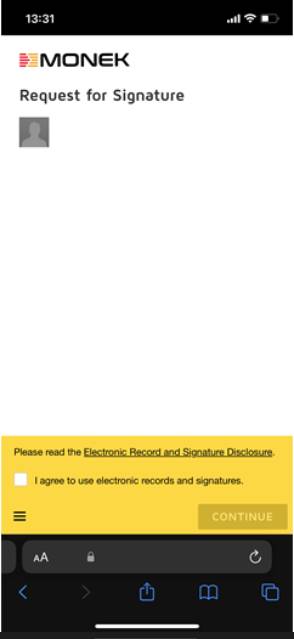
The merchant can choose to sign each document individually or apply the same signature to each document within the email at the same time.
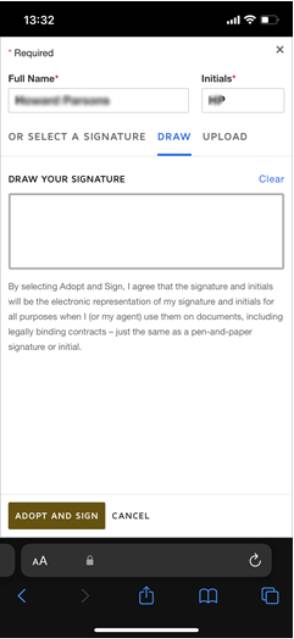
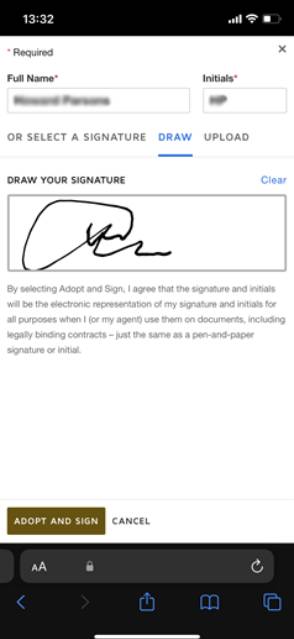
Once complete, they can click Finish, and they will be taken back to the MDS Self-Serve. Once returned, the remaining integrations will start and their order will be fulfilled.
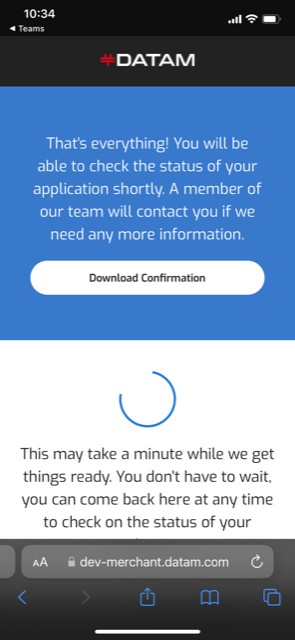
We can choose display all the integrations to the merchant on screen, only a select few, or they can be hidden… Its completely flexible.

Once all the integrations are complete, the merchant can download a copy of their order.
